

Introduction #
In the last post I built an allow-list for agents: Conditional
Access blocks every agent identity, except the ones whose custom security attribute ApprovalStatus says
IT_Approved. Approving an agent is one attribute change. I ended with a promise: next up, automating the revoke.
None of the events that should end an approval, such as a sponsor leaving or an agent being disabled, change the
attribute by themselves, so something has to.
One of the comments on that post put the hardest case well. When the sponsor leaves or changes roles, the agent may still have its approval, even though nobody owns that decision any more. The exception shouldn’t survive by default.
That’s the case I tested first. It turned out to be more interesting than I expected.
What I wanted to know #
- When a sponsor leaves, does the manager take over their agents automatically, or only if you’ve set up a leaver workflow? Microsoft’s own documentation says both. The page Manage agent identities says Entra “automatically reassigns sponsorship to the sponsor’s manager”. The page Agent identity sponsor tasks describes a Lifecycle Workflows task that you have to set up to do exactly that.
- Does the built-in workflow task Transfer agent sponsorships to manager work, and how fast?
- Does it matter whether the sponsor is disabled or deleted?
- And the one that matters most: what happens to the approval?
The test #
I made three test users, each with the same manager, and gave each one its own agent identity from the same
blueprint. All three agents started as IT_Approved. Then each sponsor left in a different way, the way HR would
do it: a leave date set to today, then the account disabled or deleted.
- Sponsor A was disabled. No workflow.
- Sponsor B was disabled, and then the leaver workflow ran for them. I used Microsoft’s template Transition agent sponsorships when a sponsor leaves, unchanged, and ran it on demand.
- Sponsor C was deleted. No workflow.
Two agents from the last post came along for the lifecycle policy later on: Finance-Assistant, with an active sponsor, as a control, and Invoice-Bot, whose only sponsor has been disabled since 10 November.
Everything was scripted with Microsoft Graph PowerShell, with -WhatIf first, and every check saved a snapshot of
the sponsors, the agent’s state, the attribute, the workflow results and the audit log. Here’s what happened:
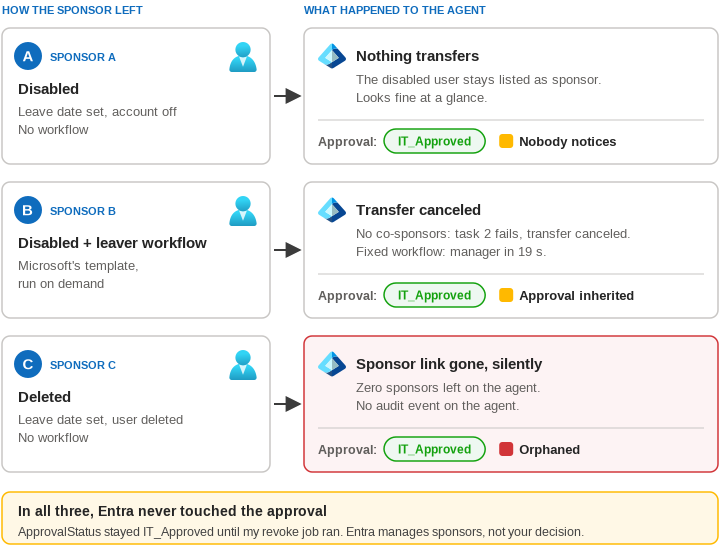
Disabling a sponsor changes nothing #
A minute after sponsor A was disabled, the disabled account was still listed as the agent’s sponsor. Forty-five minutes later it still was, and there was no sponsor event for that agent anywhere in the tenant’s audit log, while later events had already arrived, so it wasn’t just a delay. After 18 hours: still the disabled account, still no sponsor event. The automatic transfer that one Learn page describes didn’t happen.
Microsoft’s own training seems to agree with my lab rather than that page. The knowledge check in the Learn module Establish agent identities with Entra Agent ID asks exactly this question, with “Microsoft Entra ID automatically reassigns sponsorship to the employee’s manager” as one option and “No configured transfer task runs, so the employment event alone doesn’t transfer the sponsorship” as the other.
I’m not the only one who tested this. In early November someone ran almost the same test, with no workflow, and proposed a fix to the Learn pages in pull request #2160 on Microsoft’s docs repository. It was still open when I wrote this. Their results match mine, and they found one more detail: if you restore a deleted sponsor’s account, it’s back as the agent’s sponsor within 30 seconds.
I repeated that in my lab with a fourth sponsor and agent: disable, delete, restore. Same result. The sponsor was back the moment I could read it (under a second), still disabled, and the manager was never added. And there’s a twist: the agent’s audit log has nothing for either step. No Remove user sponsor when the user was deleted, no Add user sponsor when they came back. It looks like deleting a user hides the sponsor link rather than removing it. So if your automation watches sponsor events in the audit log, it misses both. Look at the sponsor list itself.
I’ve added my results, including the missing audit events and the template issue below, as a comment on the pull request. I’m following it, and I’ll update this post when it’s merged or Microsoft answers.
This is the quiet one. The agent has a sponsor, so a quick look says everything is fine. Only when you check whether
that sponsor’s account is enabled do you see that nobody is there. That’s why “an active sponsor” was one of the
approval criteria in the last post, and why the revoke job checks accountEnabled on every sponsor.
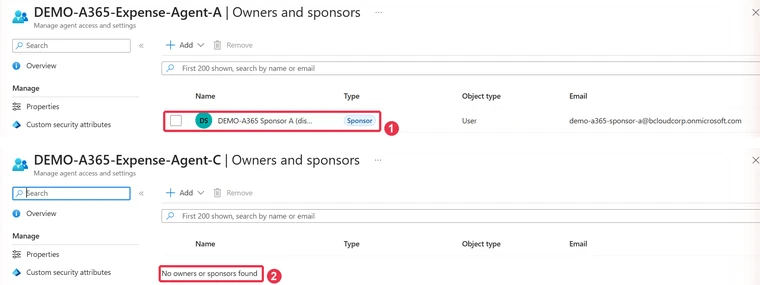
The portal doesn’t help here. The agent’s Owners and sponsors page lists the disabled user as an ordinary sponsor, with no status column and no badge (1 below). The only reason I could tell was the display name I’d given the test user.
Deleting a sponsor hides the link, without a trace #
When sponsor C was deleted, the sponsor disappeared from the agent straight away. The agent was left with zero sponsors, and the agent’s audit log shows no “Remove user sponsor” event, so nothing on the agent itself tells you when or why. The user’s deletion is in the audit log, but you have to know to look there. On the agent’s Owners and sponsors page it just says No owners or sponsors found, with no warning (2).
The template cancels the transfer #
Sponsor B is where it got interesting. The workflow ran, sent the manager an email, and then failed. The sponsorship never moved.
The template has three tasks that run in order, and each one has continueOnError set to false. Task 2 emails the
agent’s co-sponsors. My agent had only one sponsor, so there were no co-sponsors, and the task failed with
“co-sponsor did not exist”. Because the task isn’t allowed to fail, the run stopped, and task 3, the actual transfer,
was canceled.
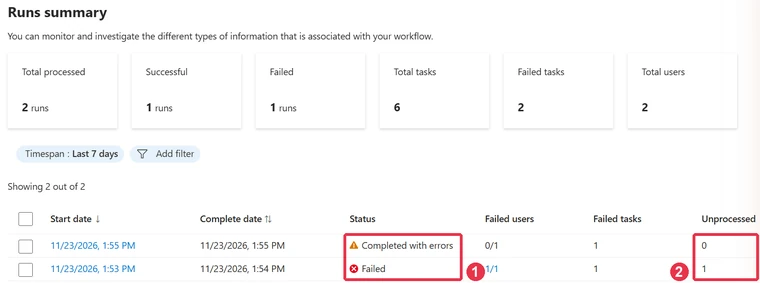
You can see it in the workflow history. The first run is Failed and the second Completed with errors (1), and the Unprocessed column shows that the first run left one task undone (2):
Open the first run and the tasks tell the story. The transfer is Canceled (1), and the co-sponsor email Failed (2) with “Task failed for 1 sponsored object because one or more co-sponsors were unreachable or co-sponsor did not exist”:

One more thing to know when you read the history: the Runs tab and the Users tab count differently. The Users tab counts a user as failed if any task failed. It showed Failed: 2 users, even though the second run did the transfer.
The manager gets the email anyway #
The first task had already run, so the manager got an email, sent at 1:54 PM (1), from the run that canceled the transfer. It says the sponsor “has moved or left and should no longer sponsor their agents” and asks the manager to “identify a new sponsor for each agent” (2). It doesn’t say whether the sponsorship was transferred. A second, identical email came from the second run, which did transfer it.
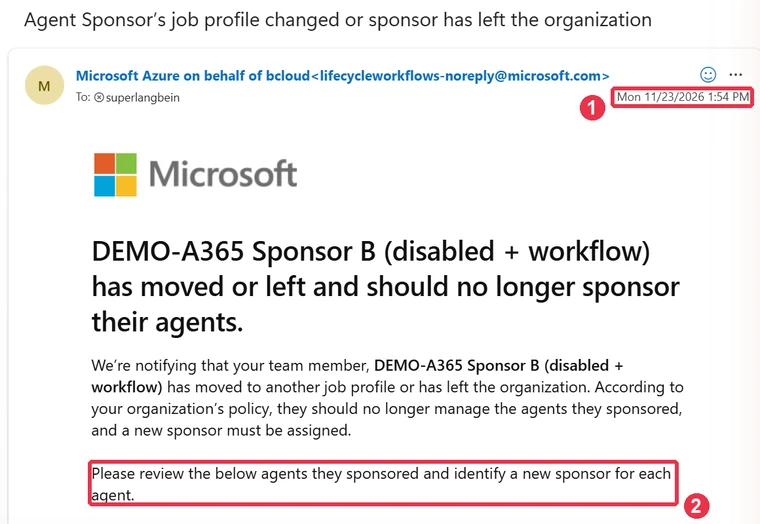
So from the manager’s side, a canceled transfer and a completed one look the same.
The fix #
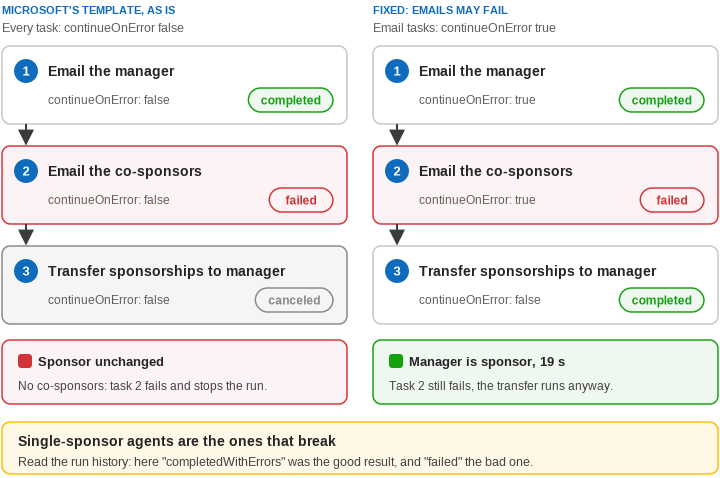
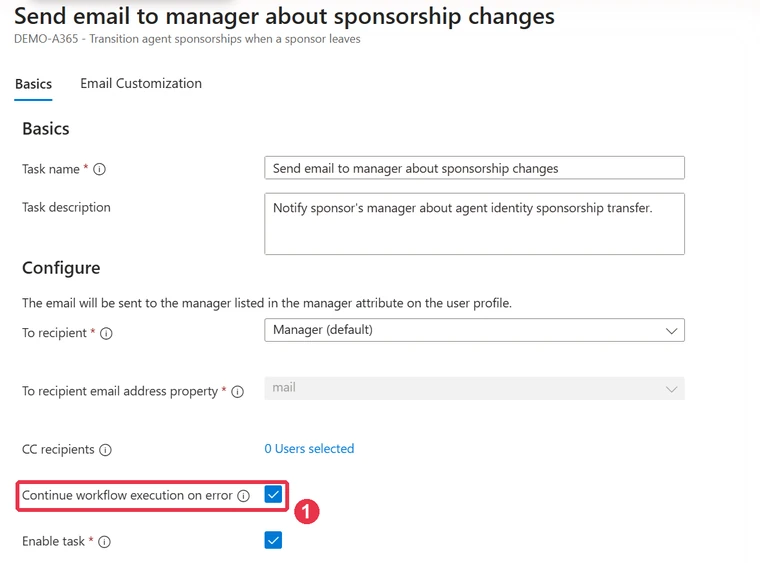
The fix is small. I created a new version of the workflow with continueOnError set to true on the two email
tasks, so a notification can never block the transfer, and ran it again. In the portal the setting is the checkbox
Continue workflow execution on error on each task (1):
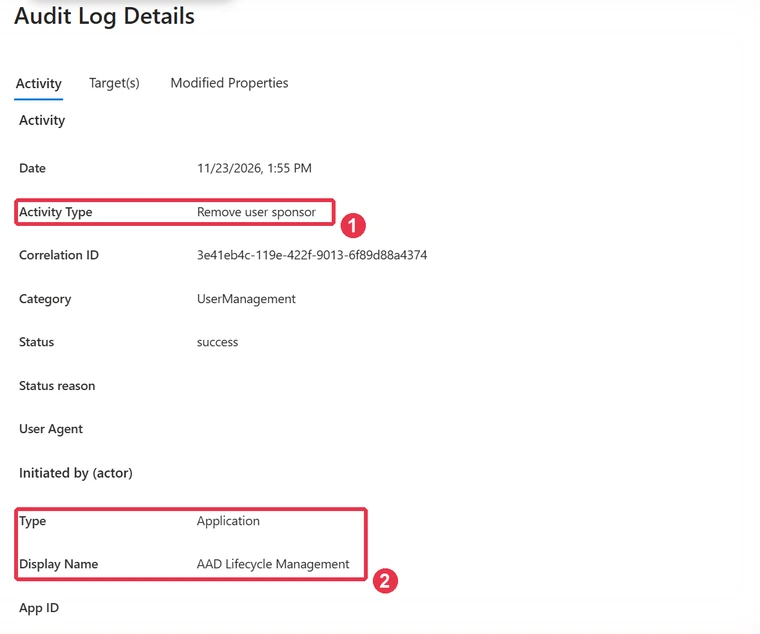
This time it finished as completedWithErrors, which here is the good result: the co-sponsor email still failed, but the transfer ran. Nineteen seconds after the run started, the manager was the agent’s sponsor. The agent’s audit log shows Remove user sponsor (1) and Add user sponsor, both initiated by the application AAD Lifecycle Management (2):
If you use this template, check it before you rely on it. I’d guess single-sponsor agents are common.
The approval survives the transfer #
And here’s the reader’s point, in my lab. After the transfer, agent B had a new sponsor, the manager, and was still
IT_Approved. The manager never reviewed it. Nobody re-decided anything. The approval simply came along with the
agent.
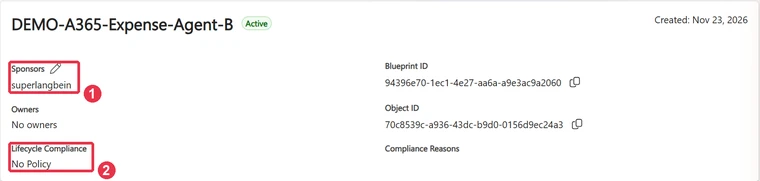
This is what the manager sees on Manage agents in My Account (myaccount.microsoft.com/agents): they’re now the sponsor (1), and the agent is active. Nothing says the agent carries someone else’s approval. Lifecycle Compliance says No Policy (2), even though my lifecycle policy covers this agent. I took the screenshot before the policy had run for the first time; after that it said Compliant, as you’ll see below.
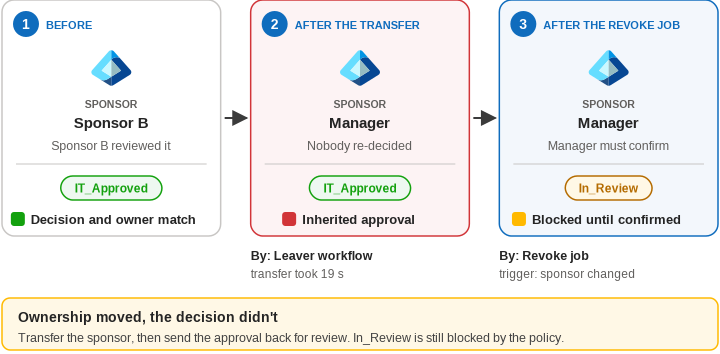
My revoke job didn’t catch it either, at first. It checks whether an agent has an active sponsor, and after the transfer it did. Ownership was fine. The problem is that the decision belonged to someone else.
So the transfer is good, and you want it: an agent with an orphaned sponsor is worse. But the transfer should hand the agent to the manager and send the approval back for review.
The design: three layers, one of them yours #
After the test, the picture got simpler. There are three things that react when a sponsor leaves, and each one watches something different:
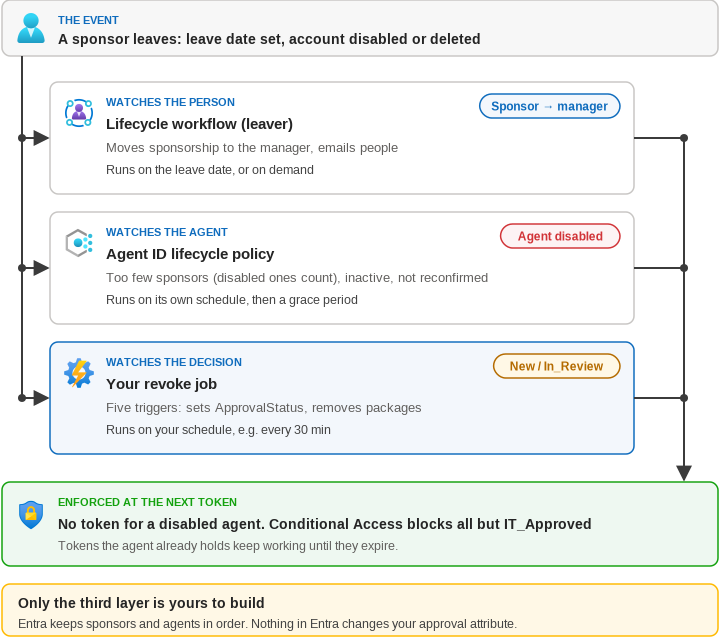
The names are close, so to be clear: a lifecycle workflow is started by something happening to a user, and a lifecycle policy regularly checks the agents. They’re the two Keep it true rows at the bottom of the governance map from the last post:
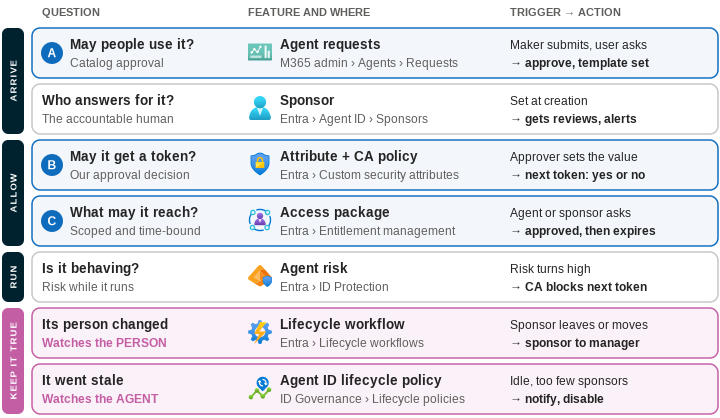
- The lifecycle workflow watches the person. It’s the one from the test: when the sponsor leaves, and if you’ve fixed the template, the sponsorship moves to the manager. The sponsor tasks are covered by the Agent 365 licence (licensing table); other workflow tasks and custom extensions need Entra ID Governance.
- The Agent ID lifecycle policy watches the agent. It’s in preview, and it checks for too few sponsors (disabled ones count), no activity, or no periodic reconfirmation. It notifies the sponsors, or a fallback recipient when there are none, and after a grace period it disables or deletes the agent (Agent ID lifecycle policies).
- The revoke job watches the decision. This is the part you build. It’s the only one that changes the attribute.
Conditional Access then does what it always does: at the agent’s next token request, a disabled agent gets nothing,
and anything that isn’t IT_Approved is blocked.
Here’s the same design one level down: what starts each layer, the identity it runs as, what it reads and what it writes. All three write to the same object, and only one of them writes the approval:
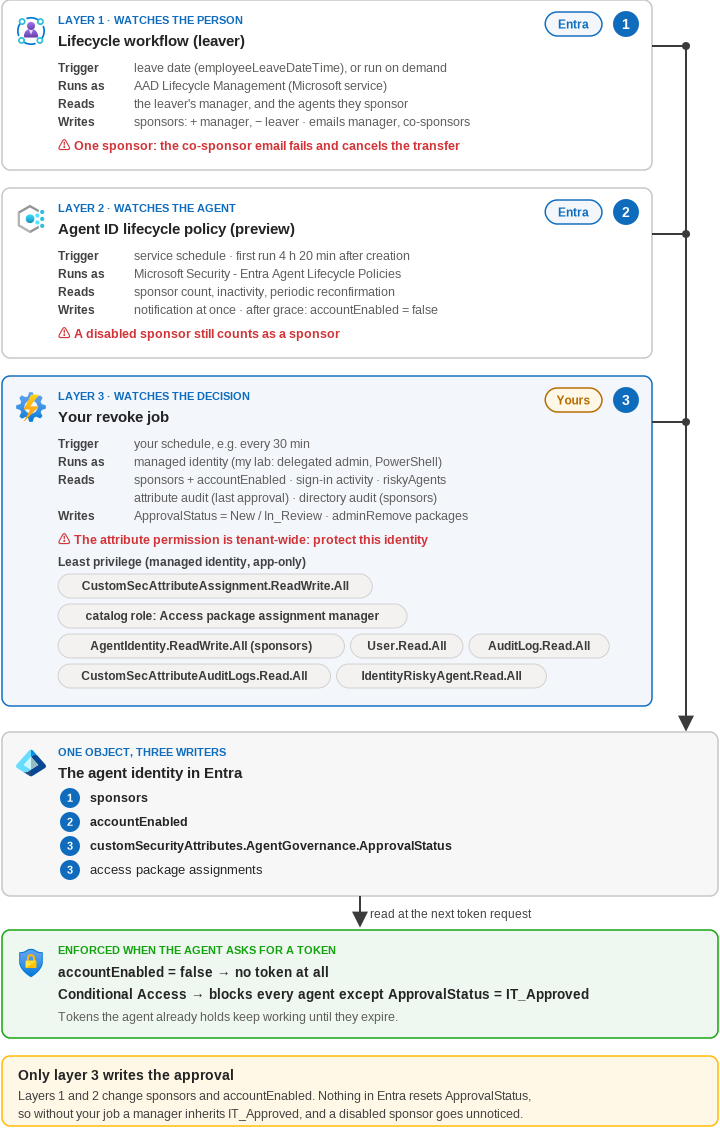
The lifecycle policy #
I hoped the lifecycle policy would be the safety net for agents A and C: an agent with no sponsor, or one whose sponsor is gone, should end up disabled even if nobody acts. It turned out to catch only C.
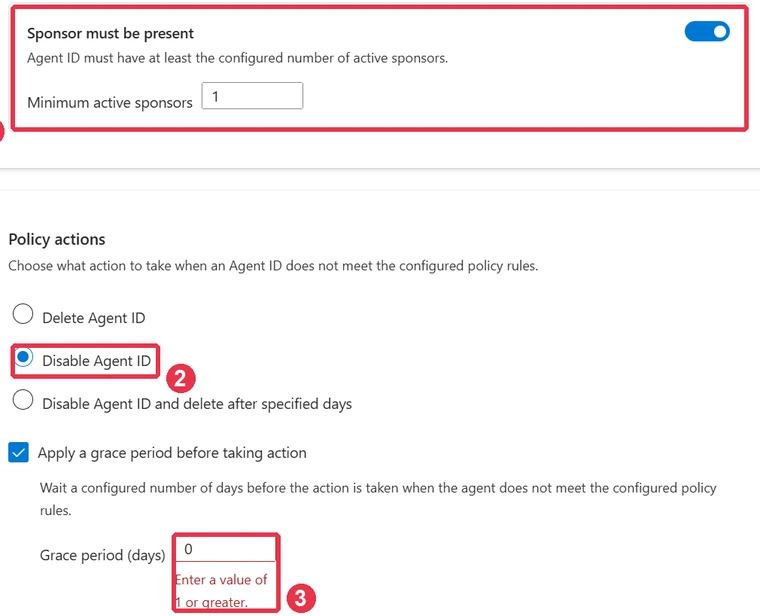
I created a policy for my five test agents: the rule Sponsor must be present with one sponsor (1), and the action Disable Agent ID (2), with my admin account as fallback recipient. Note the wording in the portal: minimum active sponsors. That suggests a disabled sponsor like A’s doesn’t count. It does count, as it turned out.
Learn only describes the portal for this, but there’s also an API in Microsoft Graph beta that isn’t documented on
Learn yet. It needs its own permission, LifecyclePolicies-AgentId.ReadWrite.All. I created the policy there, and
that taught me something: the API accepts values the portal doesn’t. It took a grace period of 0 days, which the
portal flags with “Enter a value of 1 or greater” (3), and a fallback recipient as an object ID, where the portal
wants an email address. The policy saved fine through the API, but you couldn’t save it in the portal as it was. I
changed it to 1 day and an email address. If you script these, use values the portal would accept, and check the
result in the portal.
The default inactivity policy is listed in the same place, and it’s off until you turn it on. Its settings match Learn: no activity for 60 days, then a 30-day grace period, then disable, then delete 365 days later.
At first the policy did nothing. An hour after I created it (the screenshot), and still three hours after, its Processing status was Not started (1), and Subjects currently in scope said No subjects found (2).
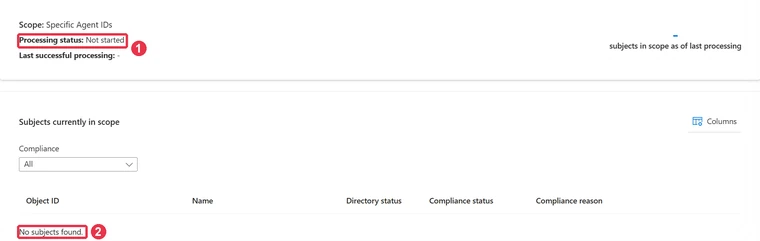
The first evaluation came 4 hours and 20 minutes after I created the policy. All five agents were then in scope, and the result is the surprise of this post:
- C, with no sponsor at all, was flagged as non-compliant. The notification went out 7 seconds later, and the policy scheduled disable for exactly one grace period later.
- A, whose only sponsor is a disabled account, was compliant. So was Invoice-Bot, whose sponsor has been disabled since early November.
- B, now sponsored by the manager, was compliant too. The policy checks that a sponsor exists, not who approved.
So minimum active sponsors doesn’t mean enabled sponsors. A disabled account still counts. That’s the usual way people leave: the account is disabled on the last day and deleted weeks later. Until it’s deleted, the policy sees nothing wrong.
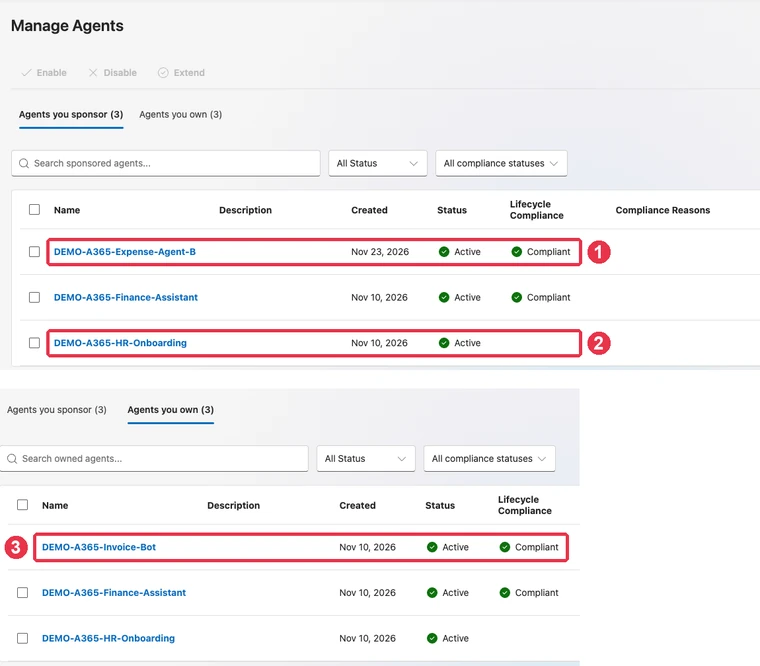
The manager sees the same in My Account. Under Manage agents, Expense-Agent-B is now Compliant (1), where it said No Policy before the first evaluation. HR-Onboarding isn’t in the policy, so its Lifecycle Compliance is empty (2). And Invoice-Bot, whose only sponsor has been disabled for two weeks, is Compliant as well (3):
If you go looking for this in the audit log, every agent in scope gets an Update service principal event from the app Microsoft Security - Entra Agent Lifecycle Policies. No changed properties are shown.
When I published this post, C’s disable was still scheduled for the end of the grace period. I’ll add what happened here.
Five triggers #
The job from the last post had four triggers. The test added a fifth:
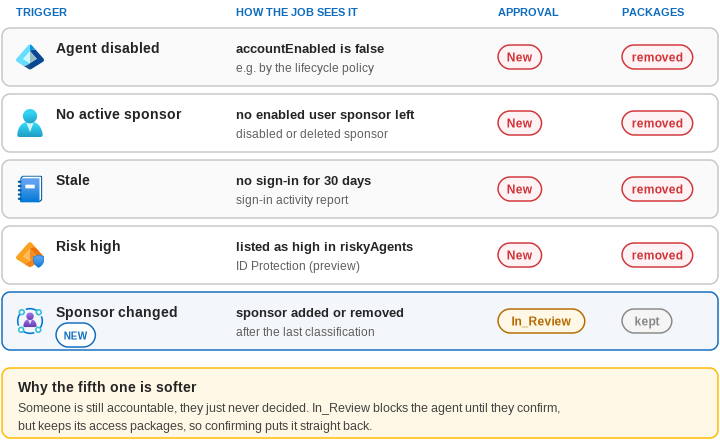
The first four mean nobody is accountable, or something is wrong, so the agent goes back to New and loses its
access packages. The fifth means someone is accountable, but they didn’t make this decision. That’s softer, so it
goes to In_Review. The policy from the last post only lets IT_Approved through, so the agent is blocked until the
new sponsor confirms it, but its access packages stay, so confirming puts it straight back.
In my lab, agents A and C went to New within minutes, and with the fifth trigger agent B went to In_Review. A
second run found nothing left to do.

“After the last classification” #
To know whether a sponsor changed after the approval, the job needs to know when the approval was set. That’s in the custom security attribute audit log, which is kept apart from the normal directory audit log on purpose. Global Administrator can’t read it; you need Attribute Log Reader (custom security attribute audit logs).
In my lab the account running the job didn’t have that role, got a 403, and the job fell back to “a sponsor changed in the last 30 days”, with a warning. That works, but it has a catch: if someone re-approves the agent within those 30 days, the next run sends it back to review again. Give the job’s identity Attribute Log Reader.
From proof of concept to production #
For this proof of concept I ran the job as a PowerShell script on my laptop, signed in as an admin. That’s fine for testing, but in production the job belongs in Azure, running as a managed identity. There are two ways to host it, and they behave differently. The diagram shows both, next to the laptop run I used:
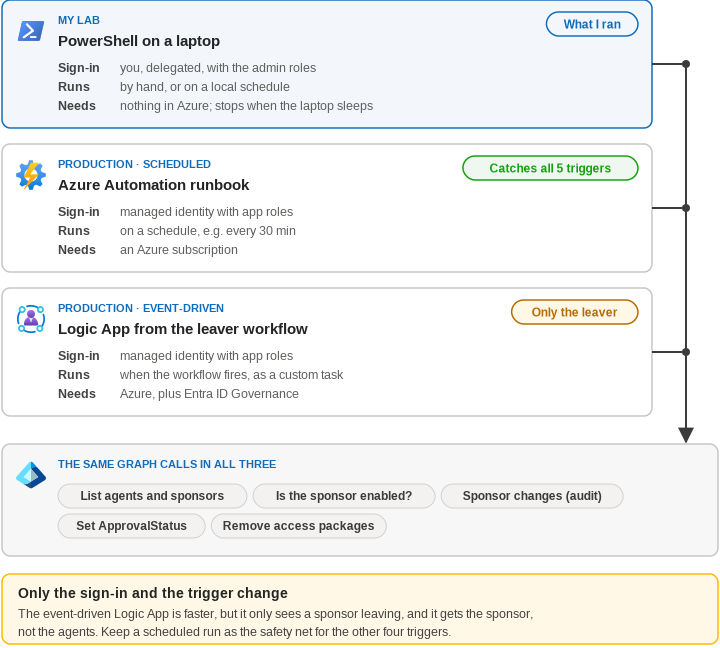
- A scheduled runbook is the same script with a managed identity instead of me. It checks every agent every run, so it catches all five triggers, but only as often as you schedule it.
- A Logic App from the leaver workflow runs the moment the workflow does, as a custom task extension. It’s faster, but it only knows that a sponsor left, and it receives the user, so it has to find that person’s agents itself. It also needs Entra ID Governance, which the Agent 365 licence doesn’t cover.
I’d start with the schedule, and add the event-driven one only if minutes matter. The Graph calls are the same in all three; only the sign-in and the trigger change.
Keep the job’s identity small #
The job changes who’s allowed to run, so its identity is privileged, and some of the permissions it needs are broad. Microsoft’s advice is to pick the least privileged permission for each call. For a managed identity (app-only), this is the smallest set I could find on Learn. The tier column comes from AzTier (source on GitHub), a community project that rates Graph permissions by how far an attacker could get with them: Tier 0 means a known path to Global Admin, Tier 1 write access or sensitive reads with no known path, and Tier 2 little security impact. It’s a community rating, not Microsoft’s, but a useful second check.
| What it does | Least privilege, app-only | Tier | Note |
|---|---|---|---|
| List agents | AgentIdentity.Read.All |
2 | Covered anyway by ReadWrite.All in the next row |
| List each agent’s sponsors | AgentIdentity.ReadWrite.All |
1 | Learn lists no read-only permission for this, app-only |
| Check that sponsors are enabled | User.Read.All |
2 | |
| Set the attribute | CustomSecAttributeAssignment.ReadWrite.All |
1 | ⚠ The only app permission for this, and it covers every attribute set, user and service principal in the tenant |
| Remove access package assignments | Catalog role Access package assignment manager, on the agents’ catalog only | – | Instead of EntitlementManagement.ReadWrite.All, which is Tier 0: it can open a path to Global Admin. Service principals can hold catalog roles |
| Sign-in activity, directory audit | AuditLog.Read.All |
1 | |
| When the approval was set | CustomSecAttributeAuditLogs.Read.All |
1 | |
| High-risk agents | IdentityRiskyAgent.Read.All |
2 |
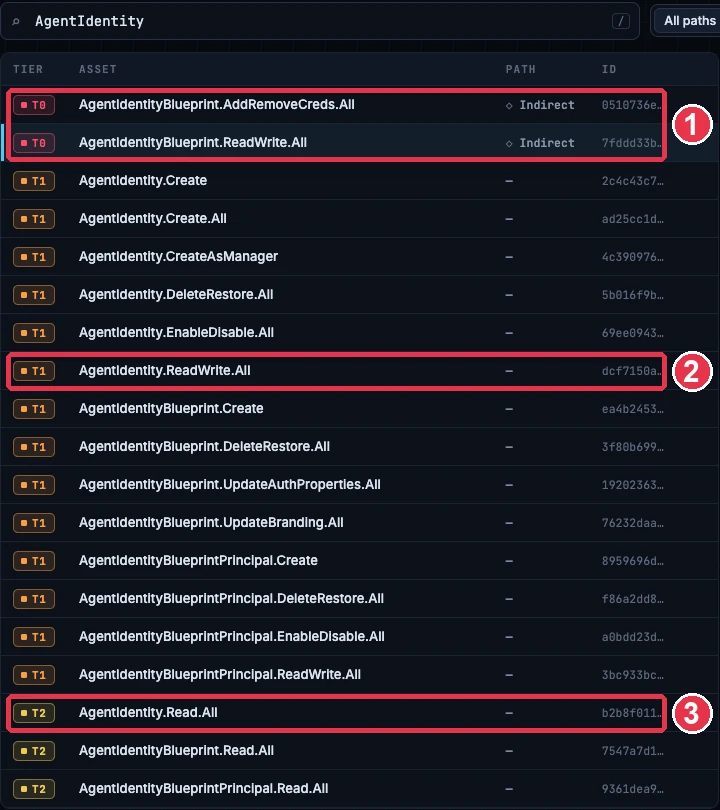
Searching AzTier for the agent permissions shows where the line goes. The two blueprint permissions that can add
credentials or change a blueprint are Tier 0 (1): with them you can act as the agents built from that blueprint, and
from there follow the same path as the Agent ID Administrator role. AgentIdentity.ReadWrite.All, which the job needs
for the sponsor list, is Tier 1 (2). AgentIdentity.Read.All is Tier 2 (3). The job needs nothing from the blueprint
rows, so keep those permissions away from it.
The attribute permission is the one to worry about. AzTier rates it Tier 1, but in this design it decides which agents
Conditional Access lets through. With it, the job’s identity could set IT_Approved on any agent, or change any
other custom security attribute, including ones your Azure role conditions might rely on. So:
- Use a managed identity, so there’s no secret to leak.
- Treat everyone who can edit the runbook as holding that permission. Whoever can change the code, or run code as the identity, can approve agents. Keep that circle small.
- The job only ever moves agents down. It sets
NeworIn_Review, neverIT_Approved. Alert on the attribute audit log if its identity ever setsIT_Approved, and keep approving with a different identity or person. - Scope the access package part to one catalog with the catalog role, not the tenant-wide permission. A catalog-scoped identity has to filter by access package, so the job has to list per package (tested below).
- For delegated runs like my lab, assign Attribute Assignment Administrator at the
attribute set scope
(
AgentGovernance), not the tenant, plus Attribute Log Reader. Note that PIM can’t make roles at attribute set scope eligible, only permanent.
I tested the catalog role from PowerShell on my laptop. In Azure the job would run as a managed identity, which is a service principal under the hood, so I used a temporary app registration (also a service principal) to stand in for it, and signed in as that app. The app had no Graph permissions at all; its token carried no roles. Its only right was Access package assignment manager on the catalog that holds the agents’ access package:
| What the app tried | Result |
|---|---|
| Remove an agent’s access package assignment | ✅ Allowed. The assignment was gone about 4 minutes later |
| List assignments and requests for that access package | ✅ Allowed |
| List catalogs | ✅ Allowed, but it only sees its own |
| List all assignments or requests in the tenant | ❌ 403 |
| List the access packages in another catalog | ❌ 403 |
| Edit the access package | ❌ 403 |
The catalog in my lab is DEMO-A365 Agents (1), and the test ran against the fourth agent from the restore test, DEMO-A365-Expense-Agent-D (2). It got the access package through an admin assignment, and the app took it away again.
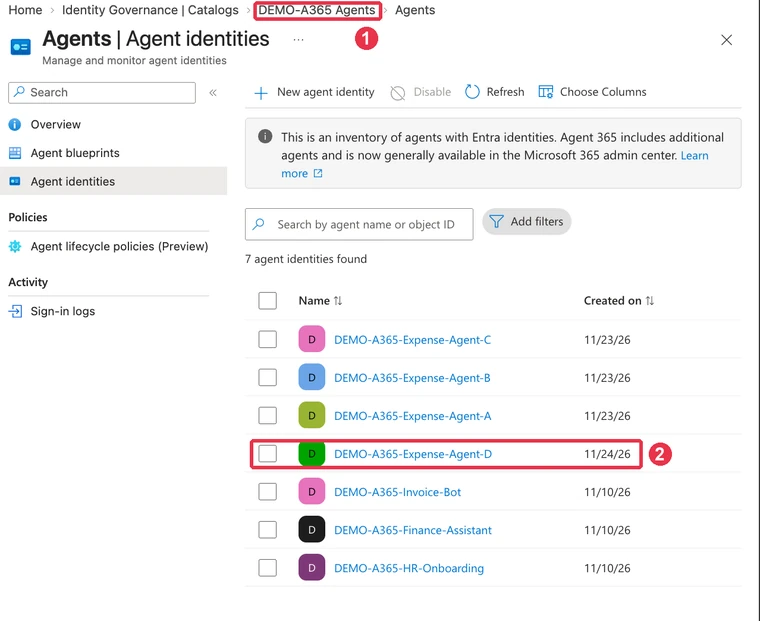
So it can do what the revoke job needs and nothing else. In particular it can’t edit a package or its policy, which is
the path that makes EntitlementManagement.ReadWrite.All Tier 0.
One change was needed. The job listed all assignments in the tenant in one call, and that’s exactly what the catalog
role refuses. It now lists the access packages in the catalog and asks for the assignments of each one. Two more
things to know if you set this up: a new service principal can’t be given a catalog role straight away (it failed
with SubjectNotFound for about a minute), and the catalog role is assigned through
roleManagement/entitlementManagement,
not through the Entra roles you’d normally use.
The rest of my lab run was still delegated, with broader scopes than the table above. Check the other permissions in your own tenant before you rely on them.
Things to get right #
- Fix the leaver template. Turn on Continue workflow execution on error for the email tasks, or agents with one sponsor never transfer.
- A transfer is not a re-approval. Send the agent back to
In_Reviewwhen its sponsor changes. - Read the sponsor list, and check that each sponsor is enabled. A disabled sponsor stays listed, a deleted one disappears without an event on the agent, and the lifecycle policy counts disabled sponsors as sponsors.
- Treat the job’s identity as privileged. Least privilege, a catalog role for the access packages, Attribute Log
Reader so it knows when the approval was set, and an alert if it ever sets
IT_Approved. - Revoking isn’t instant. It takes effect at the agent’s next token request.
What I haven’t found an answer to yet #
Some of what I saw doesn’t match the documentation, and some of it isn’t documented at all. I don’t know yet which of these are documentation gaps, design choices or real faults. This is where my research stands:
| What I saw | What the docs say | Where it stands |
|---|---|---|
| No transfer to the manager without a workflow, after disable or delete | Manage agent identities says it’s automatic. The Zero Trust Assessment guidance calls it “automatic succession” | Same result in an independent test, with a docs fix proposed in PR #2160 (open). The training quiz seems to agree with the lab |
| The lifecycle policy treats an agent whose only sponsor is disabled as compliant | The portal says “minimum active sponsors”. Learn doesn’t say what active means | Not documented anywhere I could find. I’ve seen it in one evaluation, on two agents |
| Microsoft’s leaver template cancels the transfer when an agent has one sponsor | The tasks are documented one by one, not how they behave together | Not documented. The template’s default for Continue workflow execution on error is off |
| The run that transferred the sponsor is logged as failure in the audit log | – | Read the run’s task results instead, not the audit result |
| The Graph API accepts a 0-day grace period and an object ID as recipient, which the portal rejects | The API isn’t on Learn yet (beta) | Use values the portal accepts |
| Restoring a deleted sponsor makes them the sponsor again, still disabled. Neither the delete nor the restore shows up in the agent’s audit log | Not documented | Found first in PR #2160, reproduced in my lab. The missing audit events are my own finding, now added to the PR |
Ignite 2026 ran 17–20 November (week 47), and I haven’t watched every session yet, so some of this may already have been answered there. If you know the answer to any of these, or have a Microsoft source for it, whether it’s a doc or an Ignite session, please tell me and I’ll update the post.
Summary #
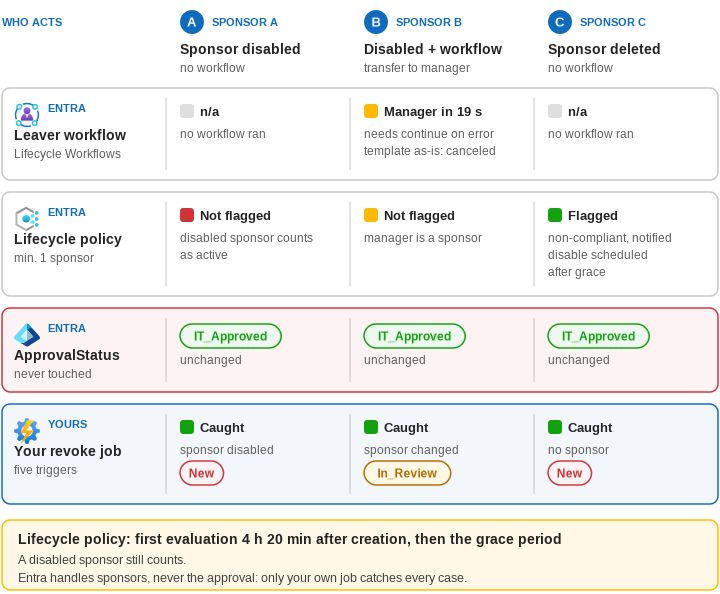
When a sponsor leaves, Entra can look after the sponsors: a leaver workflow, if you configure and fix it, moves them
to the manager, and the
Agent ID lifecycle policy can disable an agent that’s left with no sponsor at all. It doesn’t flag one whose sponsor
is only disabled, and nothing in Entra touches your approval.
In all three leaver cases, A, B and C, ApprovalStatus stayed IT_Approved until my own job changed it.
And the reader was right: when the transfer works, the exception survives by default. The manager inherits an
approval they never made. The fix is a fifth trigger: a sponsor change sends the agent back to In_Review, blocked
until the new sponsor confirms.
The lifecycle policy is a slow safety net: its first evaluation took over four hours, the grace period comes on top, and a disabled sponsor still counts as a sponsor. Your revoke job has to look at whether the sponsor is enabled.
Much of this is in preview and moving fast, and I’ve only tested it in my lab. If you’ve seen the automatic transfer from that one Learn page actually happen, I’d like to hear about it.
Links #
What I tested against, and what others found:
- Microsoft Learn: Manage agent identities, the page that says the transfer is automatic
- Microsoft Learn: Agent identity sponsor tasks in Lifecycle Workflows, the three sponsor tasks and the leaver template
- Microsoft Learn: Lifecycle Workflow built-in tasks, the task reference and its manager prerequisite
- Microsoft Learn: Agent ID lifecycle policies and the default inactivity policy
- Microsoft Learn training: Establish agent identities, knowledge check, question 3 asks the same question as my agent A
- GitHub: MicrosoftDocs/entra-docs pull request #2160, an independent test with the same result and a proposed docs fix
- Julien Ly: The Agentic Tenant, on owners, sponsors and managers, and where the docs disagree about the transfer. He also wrote PR #2160
- Microsoft Zero Trust Assessment: AI 014, sponsor mover and leaver workflows. This one still describes “automatic succession” without a workflow, which I didn’t see
- AzTier: tiering of Microsoft Graph permissions by Emilien Socchi (GitHub), used for the tier column in the permissions table
- Rajesh Beri: Microsoft Entra warns sponsors at 60 days, disables agents at 90, the default inactivity policy from Ignite
Next up: the agents that never got an Agent ID at all, which another reader pointed out are often the ones that most need blocking. They sit outside the attribute scheme entirely, so they need a different answer.
Let’s talk #
Thanks to everyone who commented on the last post. Two of the comments shaped this one, and the next.
Ping me on LinkedIn or X/Twitter (@salvestad).