

Introduction #
One governance question kept coming back: how do you approve an agent? Not “how do you block one”. Blocking is easy. The question is how an agent goes from “someone built this” to “we’ve decided it may run”, and how that decision is enforced.
It came up when I started looking more into Agent 365, while I was going through the AI pillar of Microsoft’s Zero Trust Assessment.
An agent in Entra can’t do anything without a token, so Conditional Access, which decides who gets a token, is the natural place to control it. But for agent identities, Conditional Access has only one grant control: Block. You can’t ask an agent for MFA, and an agent running in someone else’s cloud has no device you can check. That leaves one design that works: an allow-list. Block every agent, and exclude the ones you’ve approved.
The question is how you say “approved”. You can pick agents one by one in the policy, but then every approval is an edit to a security policy, and the list drifts. The better answer is a custom security attribute on the agent identity, and a policy that excludes agents with the approved value. Then approving an agent is one attribute change, and the policy never changes.
The building blocks #
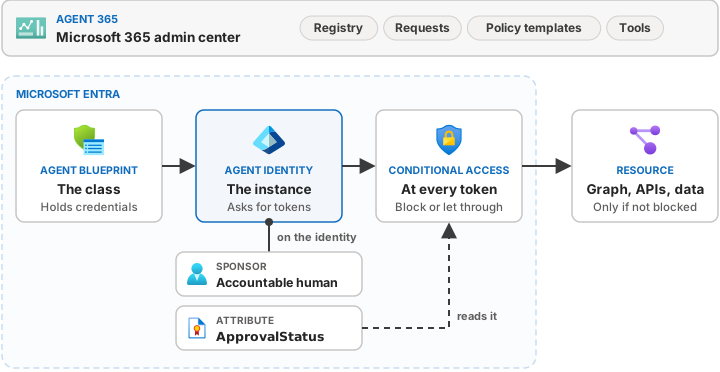
- Agent identity. With Microsoft Entra Agent ID, each agent gets its own identity in your tenant, created from an agent blueprint. The blueprint is the class, the agent identity is the instance.
- Sponsor. The human who is accountable for the agent. Every agent identity should have one.
- Conditional Access for agents. The same Conditional Access you use for users, but with agents as the target. It’s evaluated when the agent asks Entra for a token.
- Custom security attributes. Your own labels on directory objects, defined in attribute sets, with their own admin roles. You can put them on agent identities, and Conditional Access can filter on them.
- Agent 365. Microsoft’s control plane for agents, in the Microsoft 365 admin center: the registry, requests, policy templates and tools.
This part is documented #
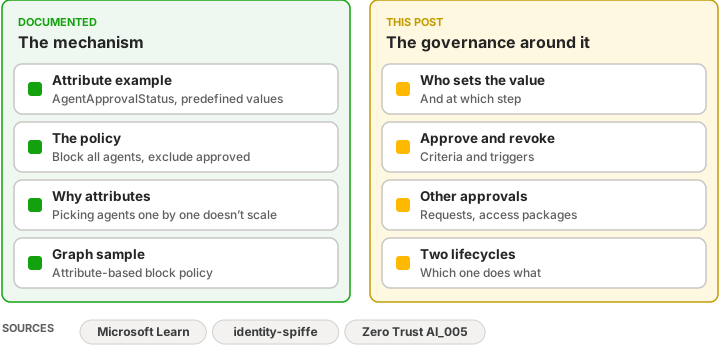
Microsoft documents the pattern on
Secure autonomous agents with Conditional Access,
under Allow only specific agents to access resources › Use custom security attributes. Its example creates an
attribute set AgentAttributes with an attribute AgentApprovalStatus, using the values New, In_Review,
HR_Approved, Finance_Approved and IT_Approved. The policy includes all agent identities, excludes agents by
attribute, targets all resources and grants Block, starting in report-only.
Conditional Access for agents
explains why: without attributes you target all agents, individual agents or a blueprint, and managing agents one by
one across every policy doesn’t scale.
Microsoft has more on it in two other places:
- identity-spiffe is a research proof of concept in Microsoft’s GitHub organization, not product documentation. It tests how to secure agent-to-agent traffic on Azure Container Apps by combining Entra Agent ID, Conditional Access and SPIFFE/SPIRE. SPIFFE is an open standard that gives each workload a verifiable identity through short-lived certificates, and SPIRE is its reference implementation. Its Conditional Access learnings page sums up what the project learned about Conditional Access for agents, including a Graph JSON sample for an attribute-based agent block policy.
- The Zero Trust Assessment workshop guidance has a page on custom security attributes for agent and resource classification.
Digging deeper #
All of this explains the mechanism. But I still had questions:
- Who actually flips the switch? Microsoft’s example has
NewandIn_Review, but nobody tells you who moves an agent from one to the next, what has to be true before it’s approved, or what takes it back. - Wait, isn’t it already approved? Agent 365 has a Requests page where admins approve agents. Access packages for agents have their own approvals too. That’s three things called “approve”. Are they the same thing?
- And which lifecycle is which? There’s a lifecycle workflow for sponsors, and a separate Agent ID lifecycle policy. Both have “lifecycle” in the name, and they do very different things.
Some coffee later, it started to click. So that’s this post: the map, the approval lifecycle behind the attribute, and the build in my lab.
Three gates, two lifecycles, one sponsor #
Three gates. They answer different questions, and an agent can pass one and fail another.
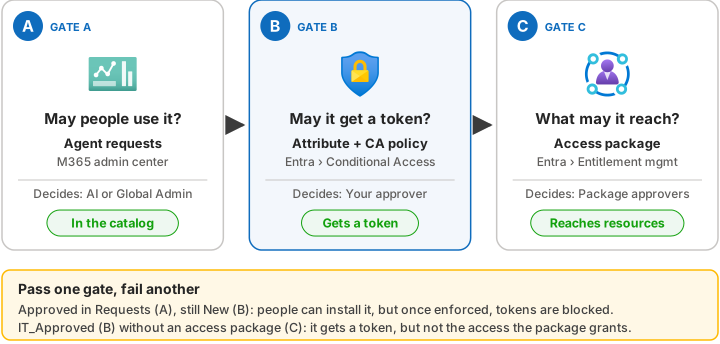
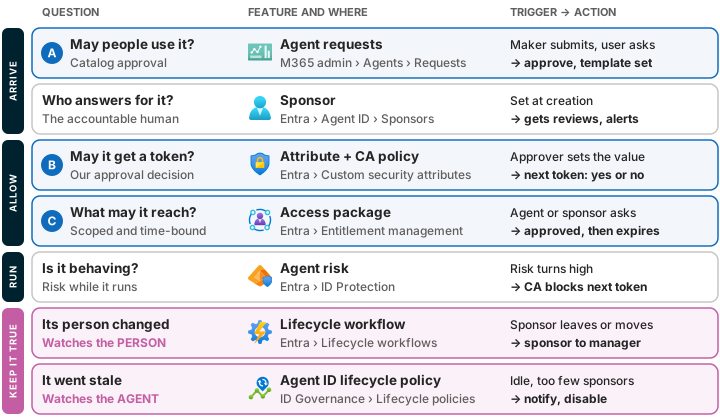
- A. May people use it? This is agent requests in the Microsoft 365 admin center (Agents › All agents › Requests). A maker submits a Copilot Studio, Foundry or Agents Toolkit agent to the org catalog, or a user asks to activate an agent so they can create instances of it. An AI Administrator or Global Administrator approves it, chooses who can install it, and picks the policy template. It’s a catalog decision, not a token decision.
- B. May it get a token at all? This is your approval, recorded as a custom security attribute on the agent identity and enforced by Conditional Access. Entra has no built-in approval status that Conditional Access can read. The attribute is how your governance decision becomes something it can. The rest of this post is about gate B.
- C. What may it reach? Access packages for agents in entitlement management. The agent or its sponsor asks for a package, the approvers set in the package policy (often the sponsor) approve, and the assignment expires. Gate B gives the agent a token; gate C decides what that token is good for.
One sponsor. The accountable human on the blueprint and on every agent identity. Everything else leans on it: someone has to answer “is this still approved?”, the sponsor gets the access package expiry notices, and the lifecycle features below are built around sponsors.
Run. Agent risk in Entra ID Protection (preview). When risk turns high, a separate policy, Block high-risk agent identities, stops the next token. That’s automatic, and it’s independent of gate B: an approved agent can still be blocked for risk.
Two lifecycles. This is the one I mixed up:
- A lifecycle workflow (ID Governance › Lifecycle workflows) watches the person. The template Transition agent sponsorships when a sponsor leaves emails the manager and the co-sponsors and moves the sponsorships to the manager. A second template covers a sponsor who changes roles.
- An Agent ID lifecycle policy (preview, ID Governance › Lifecycle workflows › Lifecycle policies › Agent ID) watches the agent, on a schedule: no tokens issued for a number of days, fewer sponsors than the minimum, or no periodic reconfirmation. It notifies sponsors and owners, and after a grace period it can disable or delete. There’s also a default inactivity policy, which is off until you turn it on. In my lab tenant it was there, and disabled.
All of it on one page. Here’s the whole map: each row is one governance question, the feature that answers it, where it lives, and what triggers it.
Gate B: the approval attribute #
Zoom in on gate B and it splits into three jobs, held by three different roles:
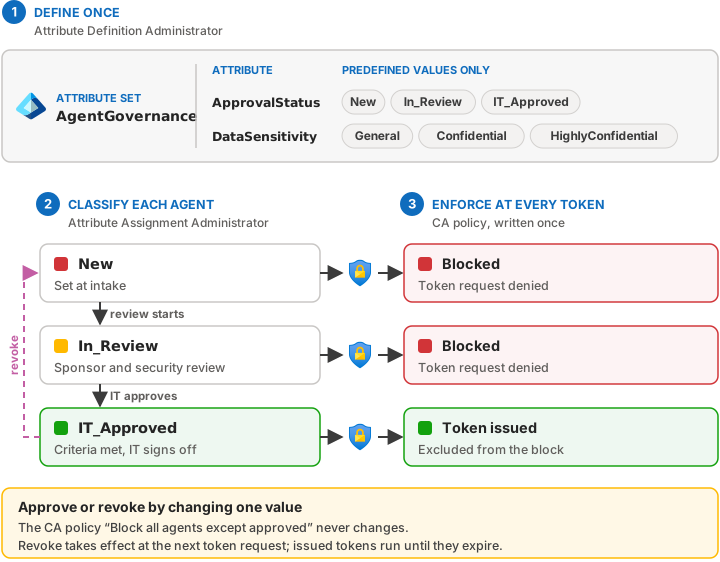
- Define once. A small vocabulary: in my lab, the attribute set
AgentGovernancewithApprovalStatus(New,In_Review,IT_Approved) andDataSensitivity(General,Confidential,HighlyConfidential). Turn on only allow predefined values, so nobody can typeApprovedorIT-approvedand fall outside the filter. - Classify each agent. Every agent identity carries a value. Because it lives on the identity in Entra and not in a spreadsheet, Conditional Access can read it. Other features may use the same label later; I haven’t tested that.
- Enforce at every token. One policy, written once: include all agent identities, exclude
ApprovalStatus = IT_Approved, target all resources, grant Block. Each time an agent asks for a token, Conditional Access checks the attribute.
I used my own names and kept it to one value per agent, and in my lab the policy offered Equals for that. Microsoft’s example allows
several values (HR_Approved, Finance_Approved, IT_Approved) and uses Contains, which fits if different
teams approve different agents. One thing to watch if you copy it: the example policy excludes only
HR_Approved, even though the text says “except those reviewed and approved”.
The approval lifecycle behind the attribute #
This is the part that isn’t written down anywhere I could find. The short version: the process makes the decision, the attribute records it, Conditional Access enforces it. Nobody changes the value unless a governance step has finished.
| Step | What happens | ApprovalStatus | Set by |
|---|---|---|---|
| Intake | A new agent shows up (Requests, Entra Agent ID, Foundry, Copilot Studio). Give it an active sponsor. | New |
Intake team |
| Review | The sponsor confirms the purpose. Security checks credentials, permissions and tools. The data owner sets DataSensitivity. |
In_Review |
Same team |
| Approval | The approval criteria are met. | IT_Approved |
IT or security approver |
| Operate | Monthly ownership review, quarterly control review. | stays | — |
| Revoke | A revoke trigger fires. | back to New or In_Review |
Approver or SOC |
| Retire | The agent identity is disabled or deleted. | — | Sponsor and IT |
Approval criteria. Agree these with the business before you approve anything:
- an active sponsor (check that the account is enabled, not just that a sponsor exists),
- no client secrets on the blueprint (federated credentials or managed identity instead),
- the agent’s MCP tools are approved,
- a policy template is applied,
DataSensitivityis set.
Revoke triggers. This is where the other features plug in:
- the sponsor leaves (the lifecycle workflow fires),
- the agent goes stale (the Agent ID lifecycle policy fires),
- risk turns high in ID Protection, or the SOC flags the agent,
- the agent changes scope, such as a new tool or new data.
None of these change the attribute for you. Today the link from “sponsor left” to “set the agent back to New” is a
process, or automation you build yourself. Revoking takes effect at the agent’s next token request; a token it
already has keeps working until it expires. Disabling the agent identity doesn’t change that either: it stops new
tokens right away, but tokens already issued still run until they expire.
Separation of duties. The approver holds Attribute Assignment Administrator, under PIM, and is never the person who built the agent. Otherwise the developer approves their own agent. The governance owner holds Attribute Definition Administrator for the rare vocabulary change. Conditional Access Administrator writes the policy once.
What DataSensitivity is for. How deep the review goes, and later perhaps which Agent 365 policy template the
agent gets. In my lab only ApprovalStatus drives Conditional Access.
Building it in my lab #
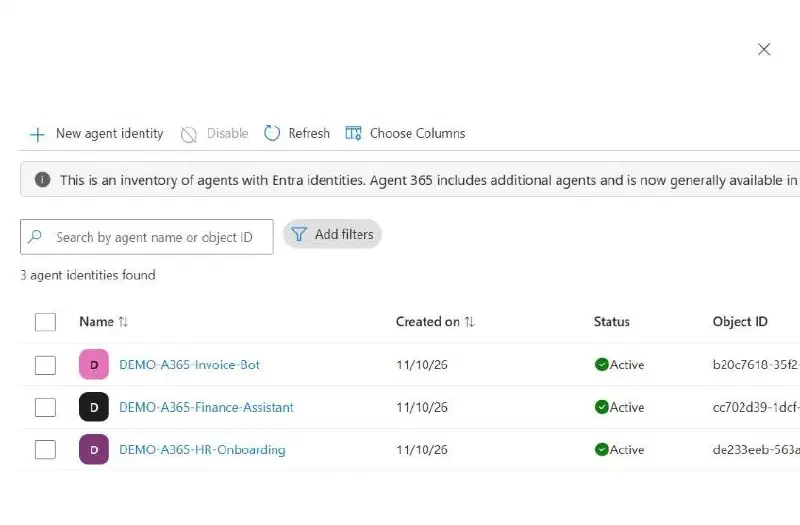
My lab tenant already had three demo agent identities from earlier work: a Finance assistant, an invoice bot whose sponsor has left the company, and an HR onboarding agent. The goal was to classify them and change an existing report-only policy from “exclude these picked agents” to “exclude by attribute”.
Prerequisites #
- Agents that use Entra Agent ID. The policy only reaches agents that have an agent identity. Check Entra › Agent ID › Agent identities to see which of yours do; a plain app registration or service principal isn’t an agent identity, so an agent policy doesn’t target it. Conditional Access also only sees agents that ask Entra for a token. An agent that uses an API key never asks. For example, an agent that calls Azure OpenAI or a storage account with a key from its config file gets in with the key alone, so Conditional Access never sees it. Security defaults must be off, because Conditional Access doesn’t apply while they’re on.
- Licences. Conditional Access for agents needs Microsoft 365 E7, or Agent 365 together with at least Entra ID P1 or Microsoft 365 E3. The Block high-risk agent identities policy also needs Entra ID P2 or Microsoft 365 E5.
- Roles. Global Administrator has none of the custom security attribute permissions by default (custom security attributes overview), so plan the roles up front:
| Task | Role |
|---|---|
| Create the attribute set and the attributes | Attribute Definition Administrator |
| Assign values to agent identities | Attribute Assignment Administrator |
| Read the values | Attribute Assignment Reader (or Administrator) |
| Create the Conditional Access policy | Conditional Access Administrator, plus read access to the attributes |
- A naming decision up front. Attribute sets and attribute definitions can’t be deleted, only deactivated, so agree the names of the set, the attributes and the values before you create them.
Scripted, with -WhatIf first #
I scripted the attribute part with Microsoft Graph PowerShell: create the set and the two attributes if they’re missing, assign the values to the three agents, and read them back.
Because the names are permanent, I ran the script with -WhatIf first, and I’m glad I did: it showed exactly what it would create, and it
couldn’t find the HR agent. The agent was called DEMO-A365-HR-Onboarding, not DEMO-A365-HR-Onboarding-Agent,
and an older seeding script had the same wrong name, so it would have created a duplicate agent. After fixing the
name, the real run created the set and read back the values I expected:
| Agent identity | ApprovalStatus | DataSensitivity |
|---|---|---|
| DEMO-A365-Finance-Assistant | IT_Approved |
Confidential |
| DEMO-A365-Invoice-Bot | New |
Confidential |
| DEMO-A365-HR-Onboarding | In_Review |
HighlyConfidential |
Tip: make the script treat only a 404 as “doesn’t exist”. If it treats any error that way, a 403 from a missing role
or permission shows up in the -WhatIf output as “would create”, which looks fine and isn’t.
The policy #
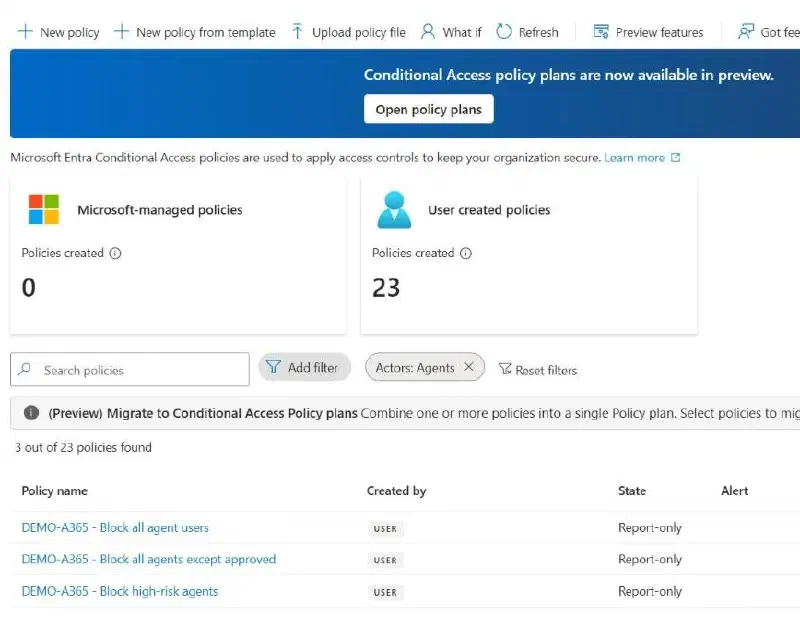
Then the Conditional Access policy, in the Entra admin center:
- Assignments › Users or agents › What does this policy apply to? › Agents.
- Include: All agent identities.
- Exclude: Select agent identities › Select based on attributes ›
AgentGovernance_ApprovalStatusEqualsIT_Approved. - Target resources: All resources.
- Grant: Block.
- Enable policy: Report-only. Check Policy impact and the sign-in logs before you switch it on.
The exclude is a filter on the attribute, set under Users or agents › Exclude, so it applies to the agent that asks for the token. Target resources has its own attribute filter, and that one matches the resource being called, not the agent. That’s not the one you want here.
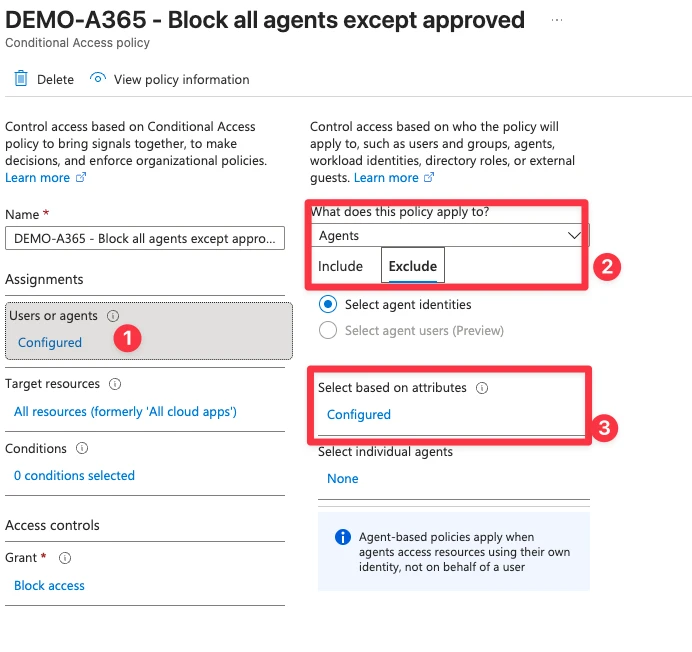
The note at the bottom of that pane is worth reading: agent policies apply when an agent uses its own identity, not when it acts on behalf of a user. More on that under Things to get right.
In the filter, the attribute shows up as AgentGovernance_ApprovalStatus, which is the attribute set
(AgentGovernance) and the attribute (ApprovalStatus) joined with an underscore. You can only pick from the
predefined values, so IT_Approved has to be spelled exactly as it is in the attribute definition. The portal turns
your choice into the rule syntax underneath, and in Graph the rule lands on the agent side of the policy
(clientApplications.agentIdServicePrincipalFilter, mode exclude), not on the resource side.
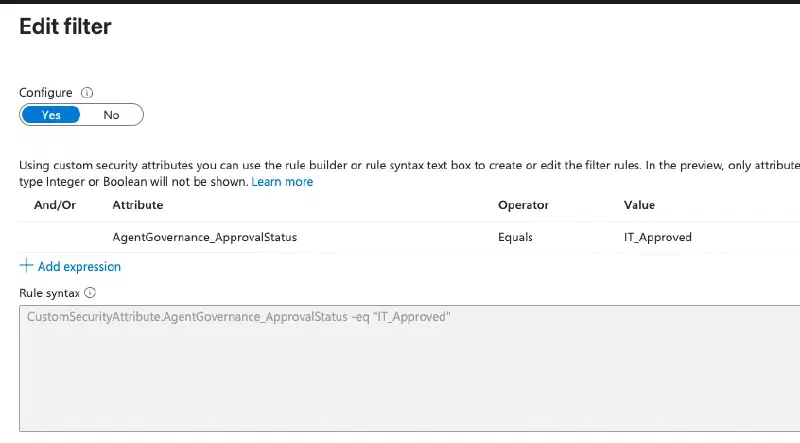
In my lab, only the Finance assistant falls outside the policy. The invoice bot and the HR agent would be blocked.
Things to get right #
- Backfill before you enforce. Give every agent that must keep working its
IT_Approvedvalue first, then run the policy in report-only, then switch it on. Do it the other way round and every agent without a value is blocked. - No value is the safe default. Nothing sets
Newautomatically. Once the policy is on, a brand-new agent with no value is blocked anyway, because onlyIT_Approvedis excluded.Newjust makes the state visible. - Agent users need their own policy. A policy that targets agent identities doesn’t reach the agent’s user
account. That needs a separate policy that targets agent users. In my lab, Graph rejected
users.includeUsers = AllAgentIdUserswith error 1342 and acceptedagents.includeAgentUsers. Neither is in the Graph reference yet. - It only covers agents acting as themselves. When an agent acts on behalf of a signed-in user, the user is the token subject, and Conditional Access applies the user’s policies. Learn says it plainly: selecting an agent identity as the policy subject “doesn’t cover agent requests made on behalf of the user”. So an unapproved agent working for a user isn’t stopped by gate B. Your user policies are what count there.
- Know what else it doesn’t see. Conditional Access only acts when an agent asks Entra for a token, so three
kinds of agents never meet gate B (all three are also under Prerequisites):
- Agents that use an API key. For example, a Python agent that calls Azure OpenAI with a key from its config file, or reads a storage account with an access key. The key is the access, so Entra is never asked.
- Agents without an agent identity. An agent that runs as a plain app registration with a client secret is a service principal, not an agent identity, so a policy that targets agents doesn’t reach it.
- Tenants with security defaults on. You can’t use Conditional Access while security defaults are on, so there’s no policy to enforce the attribute.
Summary #
Microsoft gives you the mechanism: a custom security attribute on the agent identity, and one Conditional Access policy that blocks every agent except the approved ones. I’ve set that part up in my lab, with the policy in report-only.
The hard part is everything around it: who sets the value, what has to be true before an agent is approved, and what takes the approval back. None of that is a product feature yet. It’s a process you have to design, own and keep running, and today the link from “the sponsor left” or “the agent went stale” back to the attribute is manual or automation you build yourself.
There’s also a lot I haven’t tested yet. Conditional Access policy plans just showed up in preview in my tenant, and I haven’t tried this pattern inside a policy plan yet. I also haven’t tested how the attribute plays together with Agent 365 policy templates. And much of this is in preview and moving fast. With Microsoft Ignite around the corner, I expect more to come, and some of this post may need an update soon after.
Next up: automating the revoke. That manual link is what I’m looking into now. None of the revoke triggers can
change the attribute on their own, so I’m testing a scheduled job in my lab that sets an approved agent back to New
when its sponsor is gone, it has gone stale, or its risk turns high. I’ll write that up in a follow-up post once I’ve
seen it work.
Let’s talk #
I had to wrap my head around this one myself, and I got good inspiration from Microsoft’s Zero Trust workshop guidance for AI on how to classify agents.
Ping me on LinkedIn or X/Twitter (@salvestad).